
Home / News / FusionSolar guide
New Wi-Fi at home?
Reconnect your Huawei inverter.
Changed your router, network name or password? Here is how to update the connection in FusionSolar, logging in as User.
Follow the steps
Get everything ready.
Start by standing near your inverter, with your phone and the details of your new network to hand.
FusionSolar app
Log in to your account. If you have already set a local User password, have it ready.
2.4 GHz Wi-Fi
The compatible network must reach the device. Also check that the router has Internet access.
Name and password
Use the exact name of your new home network and its current password.
A readable QR code
Find the label on the device you need to configure, without opening or dismantling the equipment.
This guide covers Huawei systems already configured for home Wi-Fi, with local User access available. If your system uses a network cable, a SIM card or a different communication system, the procedure may vary.
Network requirements: Huawei guide for Smart Dongle networking and direct inverter connection. Feature availability depends on the model and configuration.
Two networks, at two different stages.
First, your phone communicates with the device. Then the device uses your home Wi-Fi to send your system’s data.
Your phone talks to the inverter.
The device’s local network is used for configuration. Your phone may report “no Internet”: this is a different network from your home Wi-Fi.
The router takes your data online.
The connection to the router and the data updates in FusionSolar must be checked separately.
Let’s reconnect it, together.
This procedure follows Huawei’s official guide for owners. Screens may look different depending on your device and app version. The reference screenshots below show the app in Italian; Italian menu labels are kept alongside their English meanings.
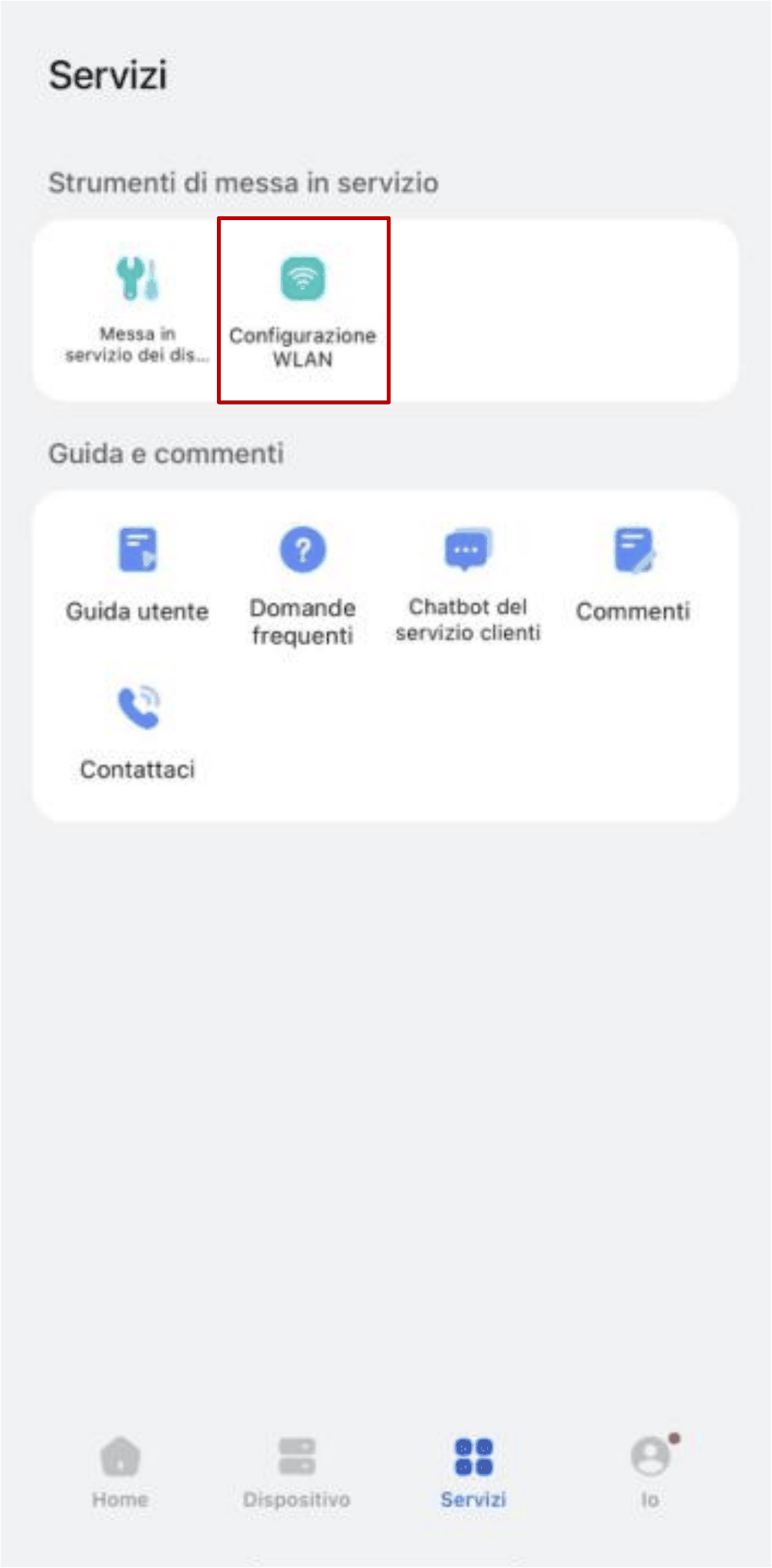
Open FusionSolar and go to Services.
Once you have logged in to your account, choose WLAN configuration. This is the function used to connect the device to your router.
The screenshot alongside shows where to find this option in Huawei’s guide. Look for the function name: its position and icon may vary between versions.
Scan the QR code and connect to the device.
Follow the app’s instructions to scan the QR code and connect your phone to the device’s local WLAN. If this network’s password is requested, the initial value is shown on the label; if it has been changed, you will need the current one.
Stay connected to the device’s network to complete the local configuration. At this stage, your phone needs to communicate with the inverter.
Local connection and phone messages: FusionSolar app user manual, FAQs on local access.
Select the User profile.
On the local login screen, select User. If the app asks you to create a password for this profile on your first login, set it by following the on-screen instructions. If a password has already been set, enter the one chosen previously.
First login for the owner: Huawei manual, FAQ 12.34 (Italian).
uSolar does not know your local User password. If you cannot remember it and it needs to be reset, contact us to arrange a visit from a uSolar technician.
Used to open your system in the monitoring service.
Used to access the device while you are on site.
Used, when requested, to connect your phone to Huawei’s local device network.
This is the router password you will enter in step 5.
These credentials have different purposes: do not assume they have the same value. The owner should keep the local password that has already been set.
Open the router connection settings.
After you log in, the app should take you straight to the home network page. If this does not happen in the inverter interface, Huawei’s guide gives the following route:
If the menus are different or the User profile is unavailable, stop here: first identify which device handles communication.
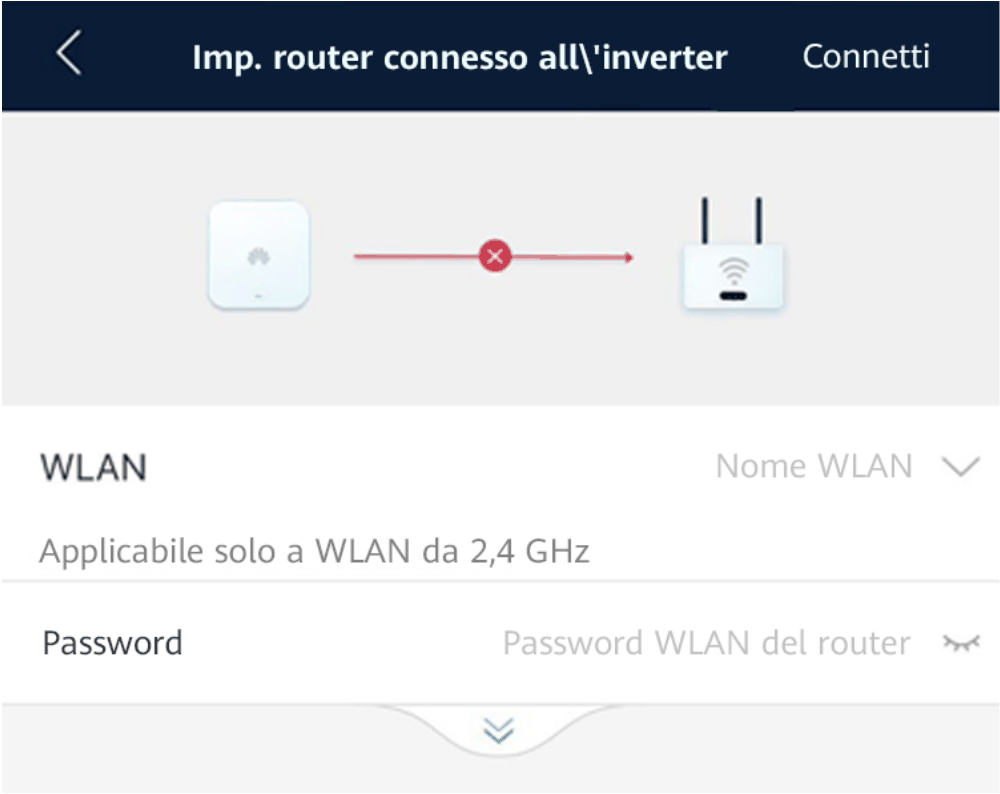
Choose your new home Wi-Fi.
Select your home network, enter its current password and tap Connetti (Connect). Check upper- and lower-case letters and symbols carefully.
Use a 2.4 GHz network that reaches the device’s location. A network operating only at 5 GHz does not meet the requirements for the connection shown here.
Check both connections.
When configuration is complete, carry out two separate checks.
Device → router
A green status on this screen confirms that the device has connected to the router.
System → FusionSolar
Reconnect your phone to the Internet, reopen your system and check its status and when the data was last updated.
Owner’s procedure: Huawei — Connecting to the router. Checking data updates separately is uSolar’s recommended final check.
Answers to common questions.
My new home network does not appear.
Check that your router provides a 2.4 GHz network and that its signal reaches the device. A dual-band router may be compatible: you do not need to disable 5 GHz permanently. If you are unsure which network to choose, ask for help with your router settings.
My phone leaves the inverter’s network.
Your phone may prefer a network with Internet access. Stay connected to the device’s WLAN; if scanning does not complete the connection, also check your phone’s Wi-Fi settings. For further troubleshooting, follow Huawei’s FAQs for your operating system.
I do not know the local User password.
If this is your first local login and the app asks you to create a password, follow the on-screen instructions. If a password has already been set, you need the one chosen previously. uSolar does not know this password. If it needs to be reset, contact us with your device model and the screen where you get stuck to arrange a visit from a uSolar technician. Do not send passwords or try codes found online.
The connection is green, but the app is still offline.
Check that the router has Internet access and that you have reopened your system with your phone connected to the Internet. If the status and last data update do not change, communication with the monitoring system needs to be checked. The local connection to the router is only one part of the process.
If the app is offline, has my system stopped generating?
A lack of up-to-date data alone does not tell you whether the system is generating. After a network change, there may be a communication issue; any system alarms or faults need to be assessed separately.
Do I need to create a new system or perform a reset?
To update the Wi-Fi, follow the router connection procedure while keeping your existing system and account. This procedure does not involve opening the equipment or changing electrical settings. If the local User password needs to be reset, contact uSolar to arrange a technician’s visit.
Stuck on a step?
Tell us what appears in the app. With the right information, we can help you find the appropriate procedure for your system.
Contact uSolarUseful information
- The model of your inverter and, if present, its communication device.
- Your phone and FusionSolar version.
- The step where you get stuck and the message displayed.
- The router connection status and the last data update in the app.
Do not send passwords. If you share a screenshot, hide any credentials and the device’s QR code.
Sources and references
Guide checked against Huawei documentation on 10 November 2026. The app screenshots are manufacturer references in Italian; the diagrams are uSolar illustrations. Menus may vary by model, configuration and version.
- Huawei, Connecting to the router — owner’s guide (Italian).
- Huawei, FusionSolar app user manual (Italian), issue 07, 30 June 2026: WLAN configuration, FAQs on local access and first-time password setup (section 12.34).
- Huawei, Smart Dongle networking and direct inverter connection quick guide (Italian): home network requirements.
- SUN2000 L1 manual (Italian) and SUN2000 LB0 manual (Italian): communication modes and WLAN frequency band.

 Italiano
 English (UK)
 Español
 Deutsch (Sie)
